Project 13:Passive Buzzer
1. Introduction
In a previous project, we have learned an active buzzer, which can only produce one sound and may let you feel monotonous. In this project, we will learn a passive buzzer and use the Raspberry Pi Pico to control the passive buzzer to sound an alarm. Unlike the active buzzer, the passive buzzer can emit sounds of different frequencies.
2. Components Required
 |
 |
 |
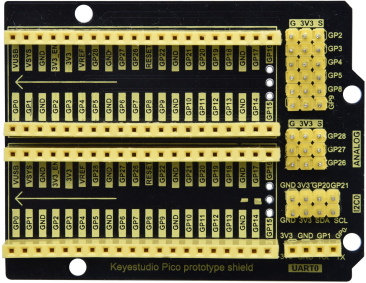
| Raspberry Pi Pico*1 | Raspberry Pi PicoExpansion Board*1 | USB Cable*1 |
 |
 |
 |
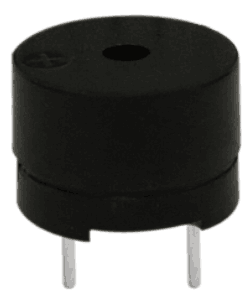
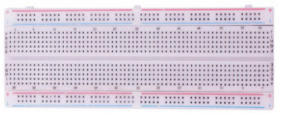
| Passive Buzzer*1 | Breadboard*1 | Jumper Wires |
3. Component Knowledge
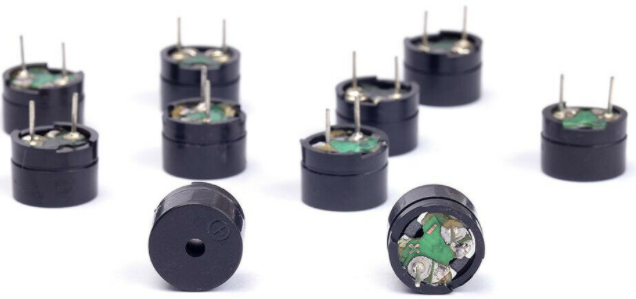
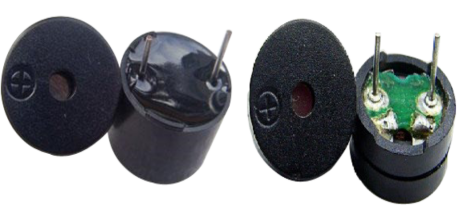
A passive buzzer is an integrated electronic buzzer with no internal vibration source. It must be driven by 200 to 5000HZ square wave, not a DC signal. The two buzzers are very similar in appearance, but one buzzer with a green circuit board is a passive buzzer, while the other with black tape is an active buzzer. Passive buzzers cannot distinguish between positive polarity while active buzzers can.
4. Circuit Diagram and Wiring Diagram
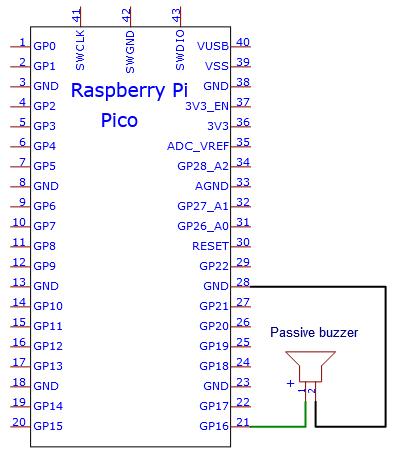
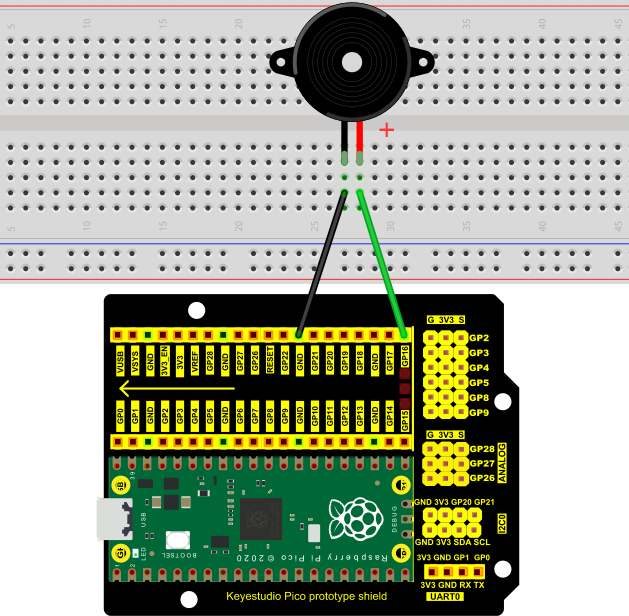
5. Test Code
The code used in this project is saved in the file KS3025 Keyestudio Raspberry Pi Pico Learning Kit Complete Edition\3. Raspberry Pi System\Python_Tutorial\2. Projects\Project 13:Passive Buzzer. You can move the code anywhere. We save the code to the pi folder of the Raspberry Pi system. The path:home/pi/2. Projects.
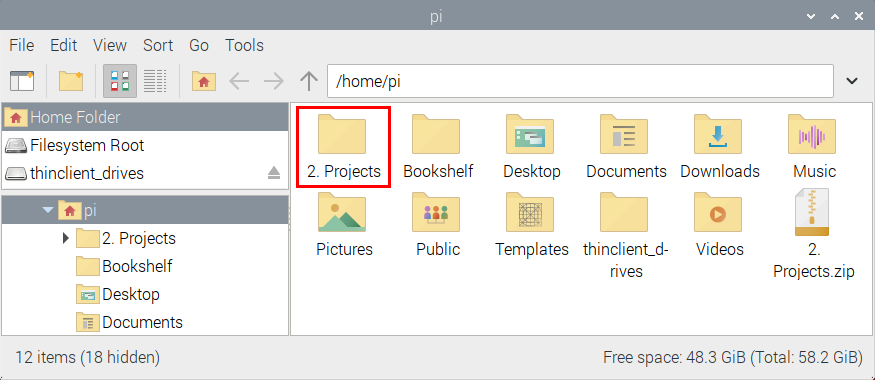
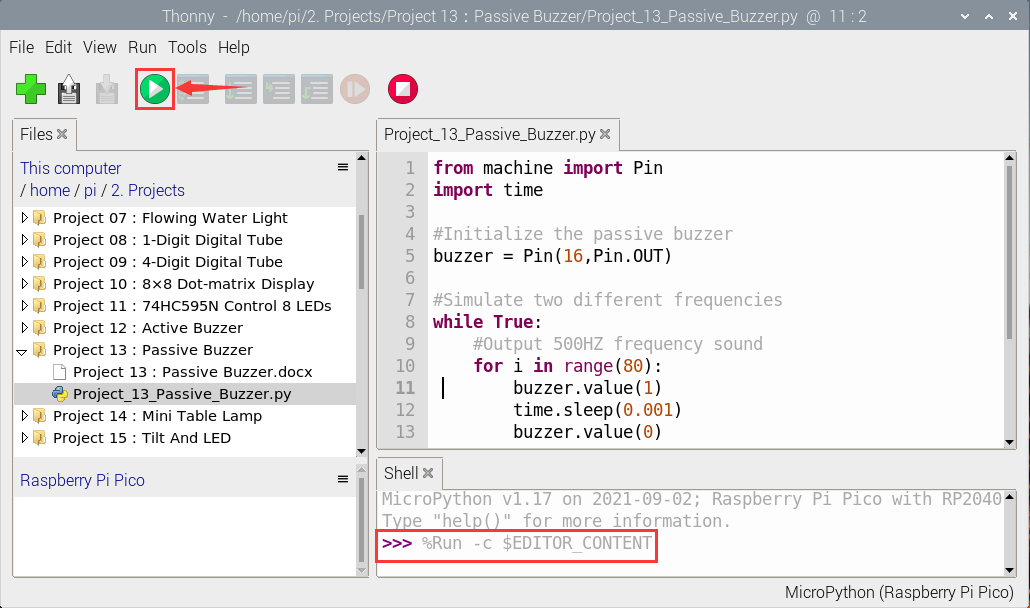
Open“Thonny”, click“This computer”→“home”→“pi”→“2. Projects”→“Project 13:Passive Buzzer”. And double left-click the“Project_13_Passive_Buzzer.py”.

from machine import Pin
import time

#Initialize the passive buzzer
buzzer = Pin(16,Pin.OUT)

#Simulate two different frequencies
while True:
    #Output 500HZ frequency sound
    for i in range(80):
        buzzer.value(1)
        time.sleep(0.001)
        buzzer.value(0)
        time.sleep(0.001)
    #Output 250HZ frequency sound
    for i in range(100):
        buzzer.value(1)
        time.sleep(0.002)
        buzzer.value(0)
        time.sleep(0.002)
6. Test Result
Ensure that the Raspberry Pi Pico is connected to the computer,click“ Stop/Restart backend”.
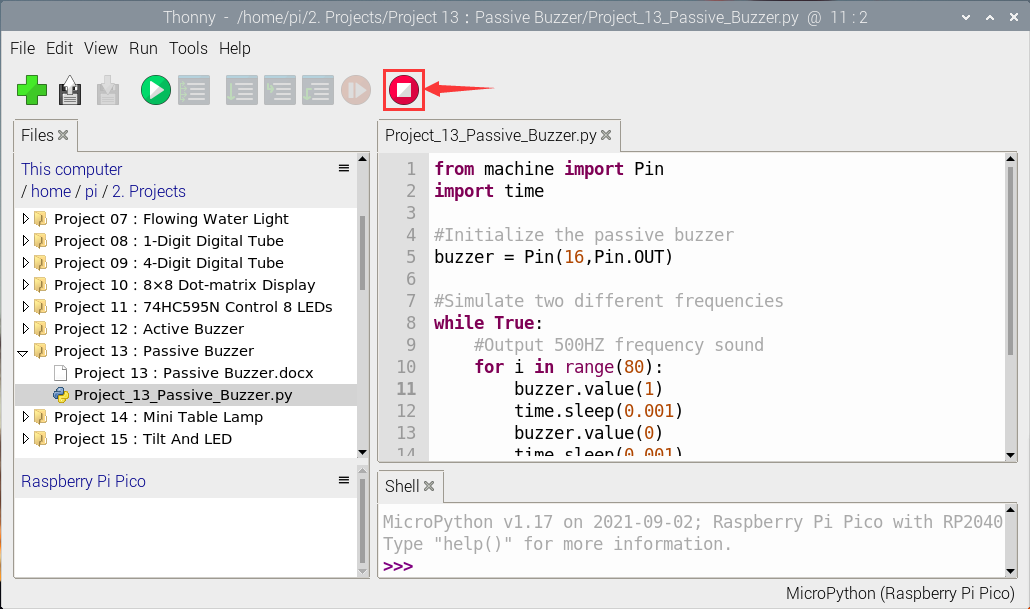
Click  “Run current script”, the code starts executing, we will see that the the passive buzzer sounds the alarm.
Click “Stop/Restart backend”to exit the program.
“Run current script”, the code starts executing, we will see that the the passive buzzer sounds the alarm.
Click “Stop/Restart backend”to exit the program.